ADVERTISEMENT
REMOVE ADS


The ultimate settings and hotkey guide for LoL. Learn how pro players optimize controls, camera, interface, and movement to climb the ranked ladder faster.
Contents
In League of Legends, your settings and hotkeys aren't just personal preferences, they're tools that can directly influence how fast, clean, and confident you play. Whether you're chasing your first ranked climb or grinding toward high-ELO and improving your MMR, fine-tuning your in-game setup can instantly make you a better player. The truth is, many players overlook this part of their game completely. They jump into matches with the default keybinds and settings and never stop to ask: Is this really the most efficient way to play? Spoiler alert, probably not.
Optimizing your controls might not sound exciting, but it's one of the fastest and easiest ways to see immediate improvement. From smoother spellcasting to quicker item usage and better camera control, having the best settings for League of Legends can reduce hesitation and help you react faster in clutch moments. Meanwhile, customizing your LoL hotkeys allows you to play in a way that matches your muscle memory, making everything feel more natural and responsive. It's no coincidence that high-ELO and pro players all have highly specific setups tailored to their champion pool and playstyle.
In this guide, we're breaking down everything you need to know to set yourself up for success, from essential hotkey changes to overlooked but powerful options hidden deep in the settings menu. Whether you're a beginner looking to build solid fundamentals or a veteran trying to clean up bad habits, this article will walk you through the best League of Legends settings and hotkeys used by experienced players. Let's get your controls working with you, not against you.
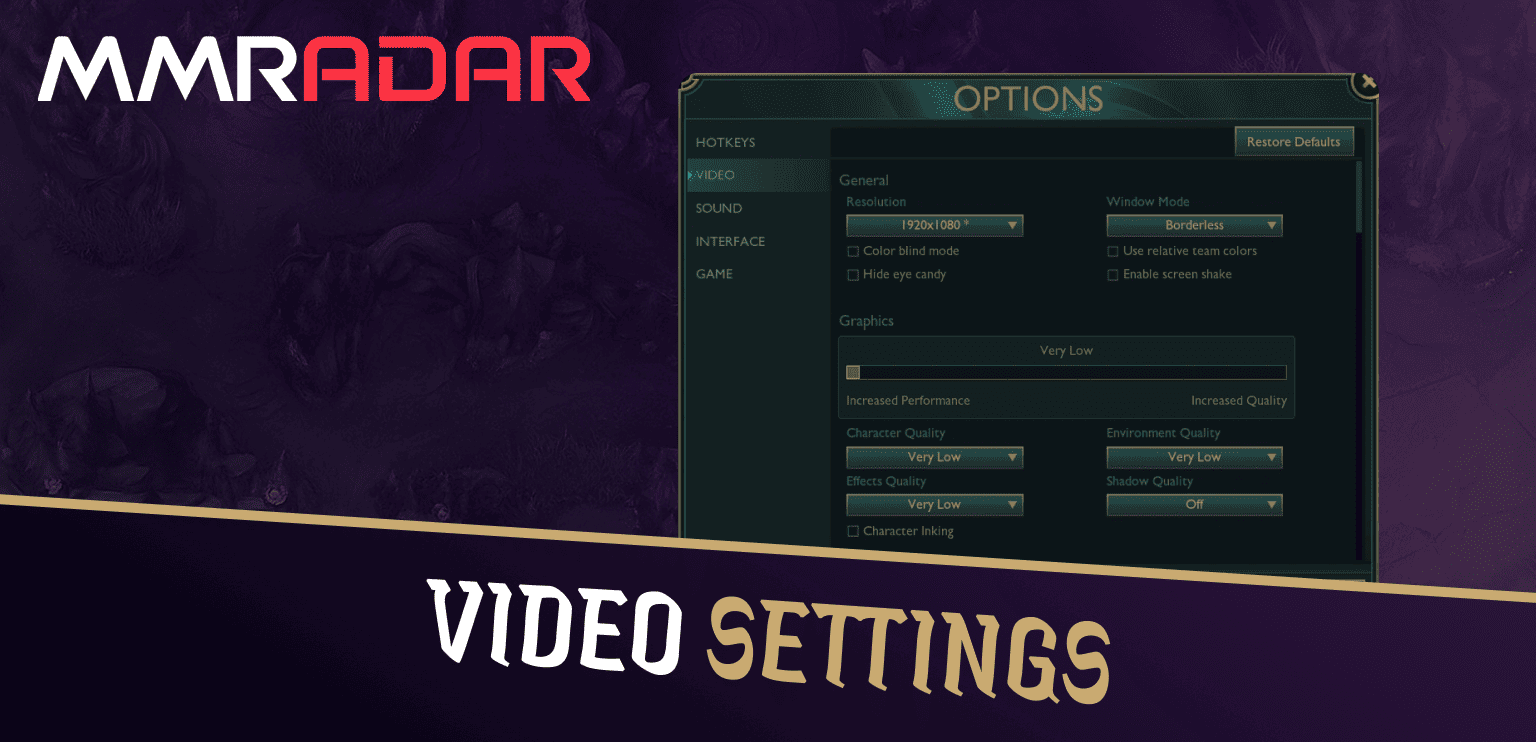
Before diving into the world of hotkeys and advanced controls, let's start with the visual side of things. Getting your video settings in League of Legends right is key not just for aesthetics, but also for clarity and performance. A cleaner visual experience means less clutter, smoother gameplay, and faster reaction times, all crucial in a game where every second counts.
To adjust your video settings, head over to the Options menu → Video while in-game or from the client. From there, you can fine-tune everything from resolution to shadow quality. For most players, especially those focused on ranked play, the goal is to strike a perfect balance between performance and visual clarity. Here are the recommended options to aim for:
Resolution: Always match your monitor's native resolution (e.g., 1920x1080 for most setups) to get the sharpest visuals. A mismatch can cause blurry textures or uneven scaling.
Windowed or Fullscreen Mode: Fullscreen mode tends to provide the best performance by allocating more resources to the game. However, Windowed or Borderless mode can be useful if you frequently tab out or use a second screen.
Character Inking: This outlines characters with a bold black line, making them pop more against the background. Turning this on can give your champions a crisper, stylized look, especially in messy teamfights.
Character Quality: Set this to High or Very High if your PC can handle it. You'll get sharper champion models and animations, great for reading ability cues more clearly.
Environment Quality: Doesn't affect gameplay much, so feel free to keep this at Medium or High depending on your hardware. Lowering it may slightly boost FPS.
Effects Quality: High settings can help you clearly see spell animations and ability hitboxes, which is important for dodging and reacting in time. But if your FPS drops during fights, consider reducing it.
Shadows: This one's all about preference. Many players, especially pros, keep shadows on Low or Off to minimize visual clutter and make enemies stand out more during chaotic moments. Higher shadow settings look great but may impact performance on lower-end machines.
To give you an example of how the pros do it, here are the settings used by none other than Faker, one of the most iconic players in League history:
Faker's Video Settings:
Faker deliberately keeps shadows on low to remove unnecessary distractions like foliage shadows or champion silhouettes that don't provide valuable information. This helps him focus entirely on important visual elements like enemy skillshots, champion positioning, and minion aggro, all of which are crucial in high-stakes situations.
Bottom line: if you're looking for the best settings for League of Legends, start with visuals that give you clarity and performance, not just flashy effects. Clean visuals help you play better, especially in tense fights where fast reactions and clear vision win games.
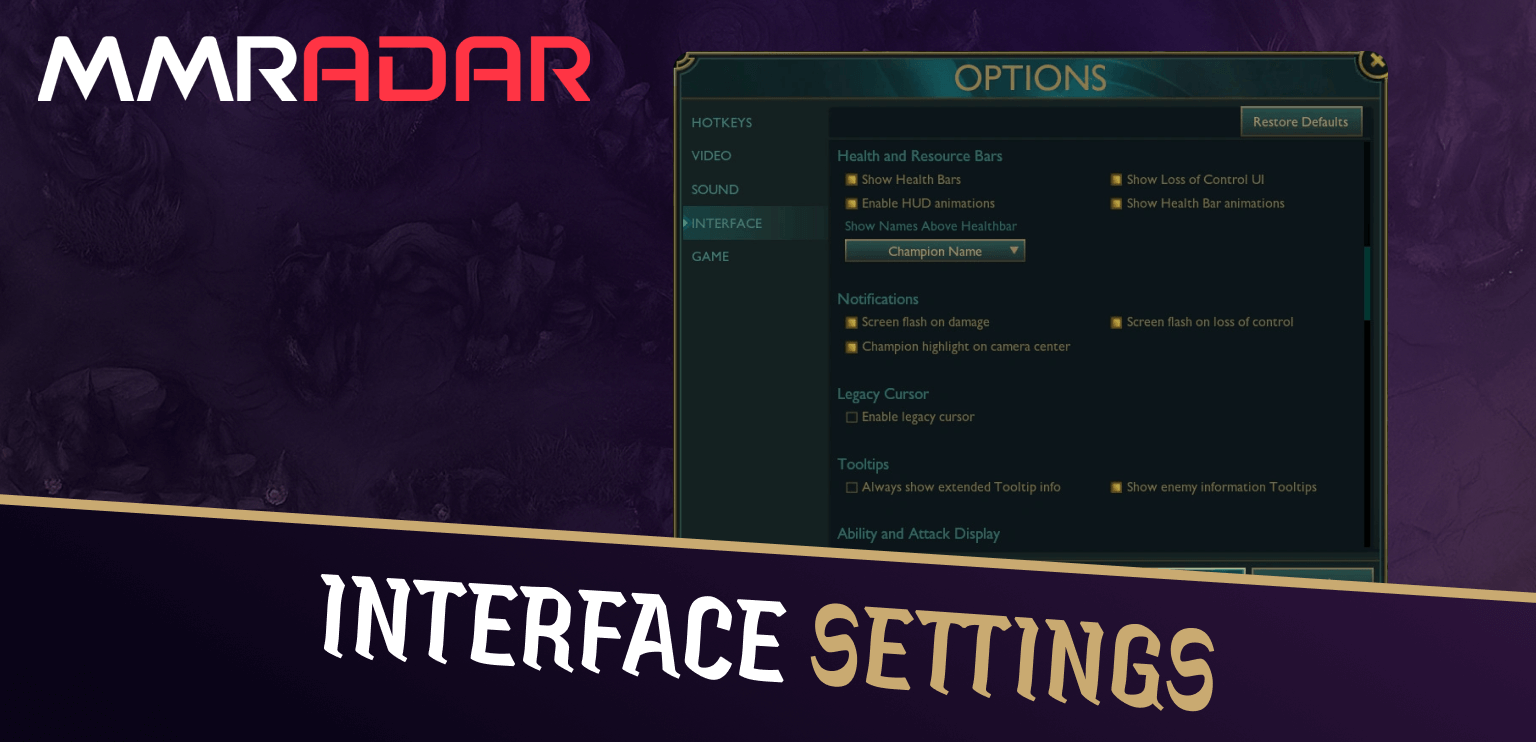
While mechanics and vision are crucial, the way your game looks and feels to you personally also plays a huge role in your overall performance. That's where interface settings come in. League of Legends gives you plenty of room to personalize your HUD (Heads-Up Display), chat, minimap, and more, and getting this setup right can lead to better awareness, faster reactions, and smoother communication. It might not feel like a game-changer at first, but these small tweaks to your UI can help you stay focused and organized in the heat of battle.
Let's break down the most important interface elements you'll want to customize when optimizing the best settings for League of Legends:
HUD Scale: Your HUD includes your health bar, mana bar, spells, items, and more, basically everything you see in the bottom and sides of your screen. If it's too big, it can clutter your field of view, especially in tight fights or when tracking the minimap. If it's too small, you risk missing important information. Most players keep it around 80-90%, but beginners might want to start with the default 100% until they're comfortable recognizing everything at a glance.
Minimap Scale: Arguably one of the most important interface settings. Your minimap is your map awareness hub, so it needs to be clearly visible without being intrusive. The default scale is around 33%, but many players increase this to 50-60% for better visibility, especially in fast-paced games where quick glances at the map can mean the difference between a gank and a safe play. Just make sure it doesn't cover up key parts of your screen.
Chat Scale: You want your chat to be legible, especially when teammates are giving pings, timers, or callouts, but not so large that it becomes a distraction. Find a size where you can read clearly without it feeling like it's taking over your screen. Somewhere in the 50-70% range tends to work well for most players.
Cursor Scale: This one's subtle but important. A small cursor can feel more precise, while a larger one is easier to spot during fights. The sweet spot for most players is around 50%, but this can vary depending on your screen resolution and personal comfort. Try a few different values and stick with the one that helps you track your mouse naturally.
Colorblind Mode: If you have trouble distinguishing red from green (or other in-game colors), this setting adjusts certain visual elements, like health bars or team colors, to make them easier to identify. Even if you're not colorblind, some players turn this on for better clarity, especially in chaotic teamfights.
Beyond the basics, there are a few extra settings tucked into the interface tab that are worth enabling:

Once you've nailed your visuals and interface, it's time to fine-tune your game settings, the heart of how your champion responds to your input. These options might seem minor at first glance, but they're essential for creating a setup that feels responsive, smooth, and tailored to how you like to play. Whether it's casting abilities, kiting enemies, or flicking your camera across the map, the right settings can drastically improve how efficient and confident you feel in every match.
Let's go over the best settings for League of Legends under the Game tab and explain why they matter:
Now let's talk about your mouse settings, which are just as important as your keyboard inputs. Your mouse is your lifeline in League, it controls your positioning, attacks, skillshots, camera, and more. Most players find the default in-game Mouse Speed and Camera Move Speed (Mouse) at 50 to be a balanced starting point. It's responsive without feeling too twitchy or slow. That said, your true sensitivity comes down to your physical mouse DPI, and most gaming mice have 1600 DPI as a standard. Stick with it if you're unsure, it's a good all-around value used by pros and casuals alike.
The same applies to Camera Move Speed (Keyboard). Some players prefer using arrow keys or spacebar to flick their camera around the map, so having a reasonable speed here (also around 50) helps keep everything consistent. And don't forget about Camera Lock Mode, there are multiple options, including Per-Side Offset, Fixed, and Semi-Locked. Test each one and go with whatever gives you the most visibility without disorienting you. Semi-Locked is a popular choice because it follows your champ loosely while still letting you drag the camera freely.
As with many parts of your control setup, your mouse and game settings come down to comfort and muscle memory. The best settings for League of Legends aren't always one-size-fits-all, they're the ones that make your inputs feel effortless and predictable. Try different values over a few games, pay attention to how you react in fights, and refine your setup until it feels just right.
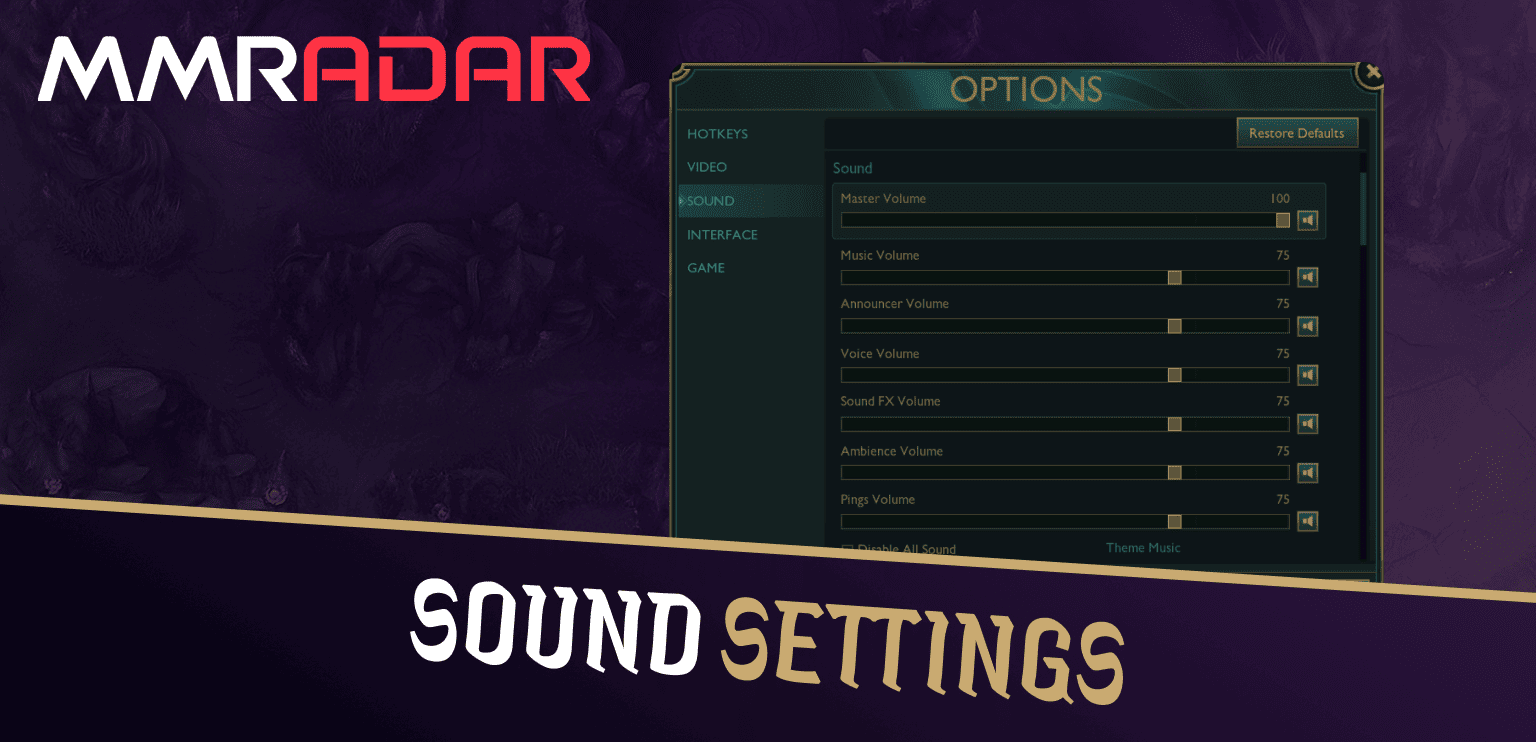
When it comes to sound settings in League of Legends, there's not a massive competitive edge to be gained, at least not compared to hotkeys or camera control. That said, your audio setup still plays a role in how focused and alert you are during the game. Some sounds are helpful, like pings and announcer alerts, while others, like ambient background noise or in-game music, can be distracting or unnecessary. The goal here isn't to crank every slider to the max but to customize your audio environment so that the sounds you do hear are the ones that matter most.
Start by going into the Options menu → Sound, where you'll see a range of volume sliders for everything from master audio to champion voices. Here are the key settings to focus on:
While sound isn't typically considered part of the best settings for League of Legends, a clean and personalized audio setup helps you concentrate and respond better to what's happening in-game. For example, a loud ping might save you from a jungle gank, while a clearly audible announcer call can alert you to an inhibitor being taken while you're across the map. Even small things like hearing ability sounds more clearly can help you react faster in fights.
In the end, your LoL sound settings should be designed to keep you aware, not distracted. Don't hesitate to experiment, play a few games with music off, try ambient noise at zero, or test how you feel when ping volume is louder. A better audio setup won't turn you into a Challenger overnight, but it will help you stay focused and informed in the moments that matter.
Movement and attacking might sound like the simplest parts of League of Legends, right-click to move, right-click to attack, but when it comes to fine-tuning your precision and control, the right settings and LoL hotkeys can completely change the way you play. In fact, many of the most subtle but powerful mechanical upgrades players make as they improve have to do with movement settings, attack commands, and how efficiently they can kite or position during fights.
Let's start with the basics. By default, right-clicking will both move your champion and initiate an auto-attack on enemies or structures. This is totally fine for beginners, but if you're aiming to improve your reaction time, farming, or teamfight control, there are some essential tools and hotkeys you'll want to experiment with.
Two of the most impactful settings under the Hotkeys > Player Movement section are Player Attack Move Click and Attack Move on Cursor. Enabling and binding these correctly can instantly make your kiting and orb-walking feel tighter and more reliable.
Player Attack Move Click lets you issue an attack command while continuing to move, a core skill for ADCs and ranged champions who need to dish out damage while staying mobile.
Attack Move on Cursor, when enabled in the Game settings, ensures that your champion attacks the enemy closest to your cursor, not your champion's model. This gives you more intentional control over who you're targeting, especially in teamfights or messy skirmishes. With this combo, you can execute clean attack-move sequences where your champ only hits what you want, when you want.
This is the foundation of effective attack moving, also known as kiting. Players who master this can win duels they have no business winning simply by moving between every auto and keeping the enemy just out of reach. To support this, you might also want to enable Show Attack Range in your Interface settings, so you always know the exact range of your auto-attacks.
This underrated but extremely useful feature lets your champion only auto-attack enemy champions while holding a keybind. This is especially helpful during tower dives, jungle skirmishes, or teamfights where minions and other clickable objects can clutter the screen. Without this setting, it's easy to accidentally auto a cannon minion instead of the enemy ADC, and that half-second mistake can cost you the fight.
By default, Target Champions Only is bound to ~ or Shift, but many players rebind it to a thumb mouse button or something easier to access in the heat of battle. For anyone serious about precise target selection, this is a must-use LoL hotkey.
The Stop command is another simple but powerful tool that's often overlooked. Bound to S by default, it cancels your champion's movement and any queued actions immediately. This gives you micro-level control, for example, stopping just outside of tower range to avoid drawing aggro, or canceling a stray auto animation to reposition quickly.
One of the most practical uses of the Stop key is while last-hitting as a ranged champion. By stopping just before you fire, you can reduce the travel time of your basic attacks and secure CS more consistently. It's also useful in tight trades where one wrong step forward could get you caught. The more you climb the ranks, the more you'll see high-level players tapping the Stop key like clockwork to manage positioning in high-pressure situations.
This option, found under Game settings, can be a bit controversial. Enable Movement Prediction attempts to smooth out your champion's pathing on higher ping by “guessing” your next movement. In theory, this can make motion feel less jittery. But in reality, many players choose to disable it for more consistent and predictable responses. Especially in fast-paced fights, you want your champion to move exactly when and where you click, no delays, no awkward drifting.
When combined, all of these settings help give you full control over your champion's movement and attacks, which is a core skill at every level of play. Whether you're learning how to kite as an ADC, trade cleanly in lane, or position yourself perfectly in a teamfight, having the best settings for League of Legends tailored to your playstyle gives you the confidence to execute when it counts.
Spend some time experimenting. Test your attack-move bind. Try using the Stop key during farming. Enable Target Champions Only and practice it in ARAM or Practice Tool. These might seem like small upgrades, but together, they make your gameplay feel smoother, faster, and more deliberate, and that's what climbing is all about.
One of the most underrated aspects of your gameplay setup, especially for newer players, is how you control your camera. While flashy mechanics and smart macro plays win games, none of that matters if you can't see what's happening in time to react. That's why optimizing your camera settings in League of Legends is a key part of finding the best settings for League of Legends, particularly when it comes to maintaining strong map awareness and reacting quickly to fights, ganks, and objective plays.
By default, many players start with the camera locked to their champion, which feels comfortable at first but quickly becomes limiting. When your camera is locked, your field of view stays centered on your champion at all times, making it difficult to check side lanes, scan jungle camps, or track enemy rotations. One of the best upgrades you can make early on is learning to unlock your camera and move it freely. This gives you way more information to work with and helps build the habit of thinking beyond your lane or champion.
That said, there's nothing wrong with occasionally snapping the camera back to your champ when needed. The Spacebar is your best friend here, by default, it quickly centers the camera on your champion without permanently locking it. This allows you to look around the map as needed, then snap back instantly for trades or dodges. Many high-ELO players rely on this bind constantly during lane phase and teamfights, especially when playing roam-heavy roles like jungle or support.
Another camera-related setting that plays a big role in map awareness is the minimap scale. If you're using the default size, chances are it's too small. A cramped minimap makes it harder to see enemy pings, notice roaming laners, or keep tabs on key objectives. Most professional and high-ranked players increase their map size to around 50-65%, which offers a great balance, you gain visibility without letting it take over your screen.
A larger minimap allows you to quickly scan vision coverage, jungle movements, and wave states without needing to constantly drag your camera. It's one of the simplest yet most impactful changes you can make, especially if you're trying to improve your macro awareness.
As your game knowledge improves, you'll realize how useful it is to occasionally check your teammates' perspectives. For example, if you're a jungler and want to know whether your mid laner has Flash or how their lane is going, quickly checking their POV can guide your next move. While you can click on ally portraits on the minimap, there's a faster and more efficient method, camera hotkeys.
Go to Settings → Hotkeys → Camera Control, and set up the Select Ally options to F1 through F4, assigning each key to a different teammate. This allows you to instantly snap your camera to their position, no clicking required. It's particularly useful for junglers, supports, and shotcallers who want to constantly scan fights across the map. For your own champion, there's no need to assign a hotkey, pressing Spacebar already does the job.
Mastering your camera control in LoL means you'll always have a better understanding of what's happening across the Rift. You'll spot roams earlier, follow up faster on ganks, track objectives with more clarity, and stay aware of threats long before they reach you. Whether you're watching a fight break out in the jungle or keeping tabs on a split-pusher in top lane, smart camera usage is what ties your LoL hotkeys, map awareness, and macro play together.
Like most settings, camera control is all about comfort and habits. Start small, increase your minimap size, practice unlocking the camera in lane, and slowly build up to using ally hotkeys. These small changes will lead to huge improvements in your map awareness, your game sense, and ultimately your win rate.
No matter how strong your mechanics or macro are, League of Legends is a team game, and that means communication is essential if you want to win consistently. While not everyone uses voice chat or types much during games (and honestly, that's fine), pings and smart alerts are your primary tools for keeping your team informed without saying a word. When used correctly, they can coordinate objectives, prevent deaths, and turn chaotic solo queue games into well-synced victories.
League's ping system is robust, but it only works if you're using it often and correctly. By default, pressing G activates your standard ping wheel. This allows you to left-click to drop a ping on the map, useful for signaling danger, requesting assistance, or drawing attention to an area. For even faster map communication, holding Alt + Left Click lets you ping anywhere instantly, whether you're warning about a missing enemy or asking your team to rotate toward an objective.
There are also contextual pings. For example:
Ping Warded is available on the ping wheel when hovering over an enemy-controlled area, helping your team avoid face-checking or wasting sweepers.
These LoL hotkeys aren't just about spamming, they're about speed and clarity. The more efficiently you can alert your team, the more coordinated your gameplay becomes. Even things like pinging your own ultimate cooldown or letting your jungler know you've warded can make the difference between a successful play and a missed opportunity.
Training yourself to react to pings is just as important. If your ally pings “enemy missing,” back off. If your support pings an all-in, be ready. Many players ping key info, but teammates often ignore it. Building the habit of watching the minimap and listening to pings will raise your awareness naturally and help you avoid common solo queue mistakes.
To improve your communication flow, you can also rebind your ping keys to whatever feels fastest for you. Some players assign pings to side mouse buttons or easily accessible keys like T, F, or V to reduce delay when signaling. This tiny change can massively boost how fluid and responsive your communication feels in-game, something especially valuable when playing jungle or support, where map-wide shotcalling matters most.
While chat is useful for typing out detailed strategies, pings are your bread and butter, quick, clear, and effective. Used well, they build synergy with teammates, even in silent games. If you're looking to improve your overall gameplay, mastering ping usage and communication hotkeys is just as important as adjusting your HUD or keybindings.
When it comes to improving at League of Legends, mastering mechanics and game knowledge is only part of the equation. The other part, and one that's often overlooked, lies in setting up your game for maximum comfort, clarity, and responsiveness. By taking the time to fine-tune your controls, visuals, and LoL hotkeys, you're giving yourself a real competitive edge before the match even begins. Whether it's smoother camera movement, faster reaction times through quick cast, or cleaner map awareness thanks to HUD and minimap adjustments, these small changes can have a huge impact on your overall performance.
There's no single “perfect” setup that works for everyone. The best settings for League of Legends are the ones that fit you, your hardware, your role, and your personal preferences. Some players thrive with default controls, while others perform better with custom keybindings and modified interface layouts. That's why experimenting is key. Try different settings for things like smart cast, mouse speed, map size, or attack-move behavior, and pay attention to what feels most natural and effective in your games.
It's also worth revisiting your settings as you grow as a player. What worked for you in Bronze may start to feel limiting in Platinum. Your settings should evolve alongside your skills, because cleaner inputs mean faster decisions, and faster decisions lead to better plays. Whether you're an ADC trying to kite like a pro, a support coordinating vision and rotations, or a jungler looking to improve macro awareness, your setup plays a huge role in how well you can execute your intentions.
So don't settle for default. Tweak, test, and personalize until every input feels like second nature. The Rift isn't just about mechanics, it's about control. And when you're fully in control of your champion, your vision, and your actions, you'll find yourself climbing faster, playing more confidently, and enjoying the game on a whole new level.


ADVERTISEMENT
REMOVE ADSMMRADAR.GG isn't endorsed by Riot Games and doesn't reflect the views or opinions of Riot Games or anyone officially involved in producing or managing League of Legends. League of Legends and Riot Games are trademarks or registered trademarks of Riot Games, Inc. League of Legends © Riot Games, Inc.